Taking a deposit payment
Charge a card or record a deposit against a contract.
Deposits and payments live on the event’s Payments tab, alongside the contract’s Total / Received / Remaining.
- Open the event → Payments tab. You’ll see the contract and any scheduled installments (e.g. a Deposit marked Pending).
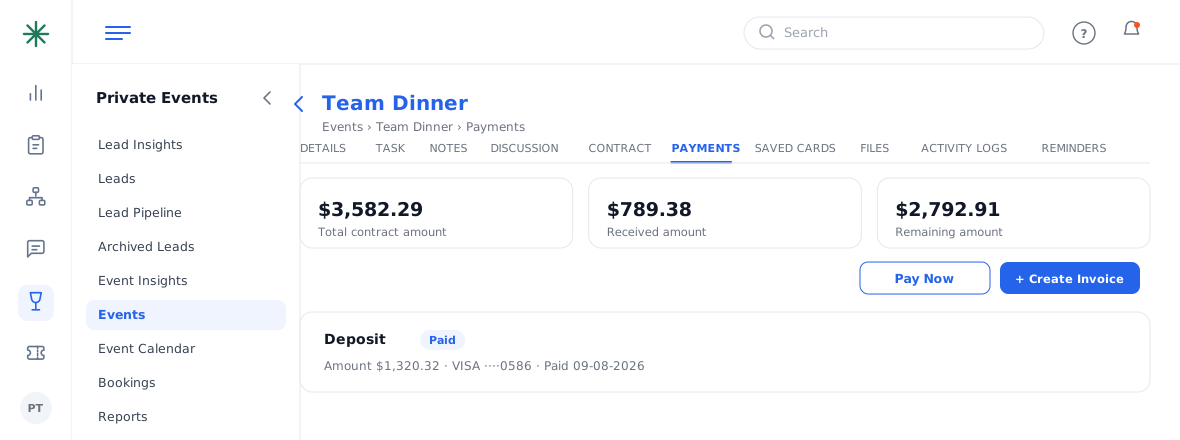
The Payments tab - Click Pay Now to process a charge against the card on file, or record a payment as received.
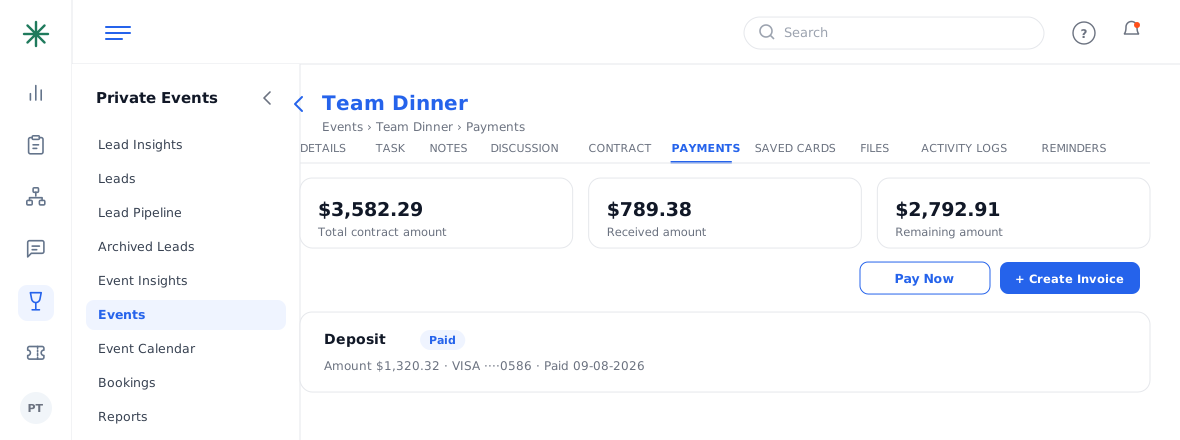
The Pay Now action - Once paid, the installment flips to paid and the Received / Remaining totals update everywhere.
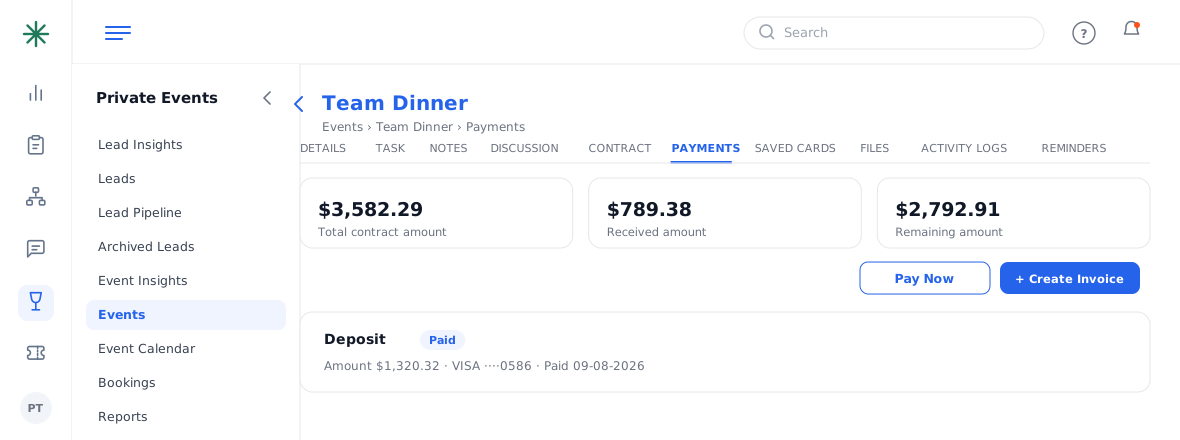
Updated balances
For security, never enter a guest’s full card number into a plain field — use the guest portal / saved-card flow so card data is handled securely.
Where the payment shows up
Once a deposit is paid it appears on the generated documents as a Payment Summary line (card type, amount, date), and the installment on the Payments tab flips from Pending to paid. The event’s Received/Remaining totals update everywhere at once.
Frequently asked questions
The guest wants to pay themselves — how?
Send them the contract/deposit link (Send Email Notification, or Share a document). They pay by card on the portal and it records automatically.
Can I record a cash or bank-transfer deposit?
Yes — enable those methods in Settings → Billing Settings → Payment Methods, then record the payment against the installment.
A payment looks wrong — where do I check?
Open Activity Logs on the event for the full trail, and the Payments tab for the installment/Payment Summary.
How do I see everyone who still owes a deposit?
Run Reports → Outstanding Payments Report for an account-wide view of pending balances.