How to add tax and fees to a contract
Enable tax/fee rates in Billing Settings, then apply or adjust them on any contract.
Taxes and fees work in two places: you define the rates once in Billing Settings, and they then apply automatically on every contract, where you can still fine-tune them.
Step 1 — Define the rate (one time)
- Open the account Settings module (settings icon at the bottom of the left rail) and go to Billing Settings → Taxes and Fees.
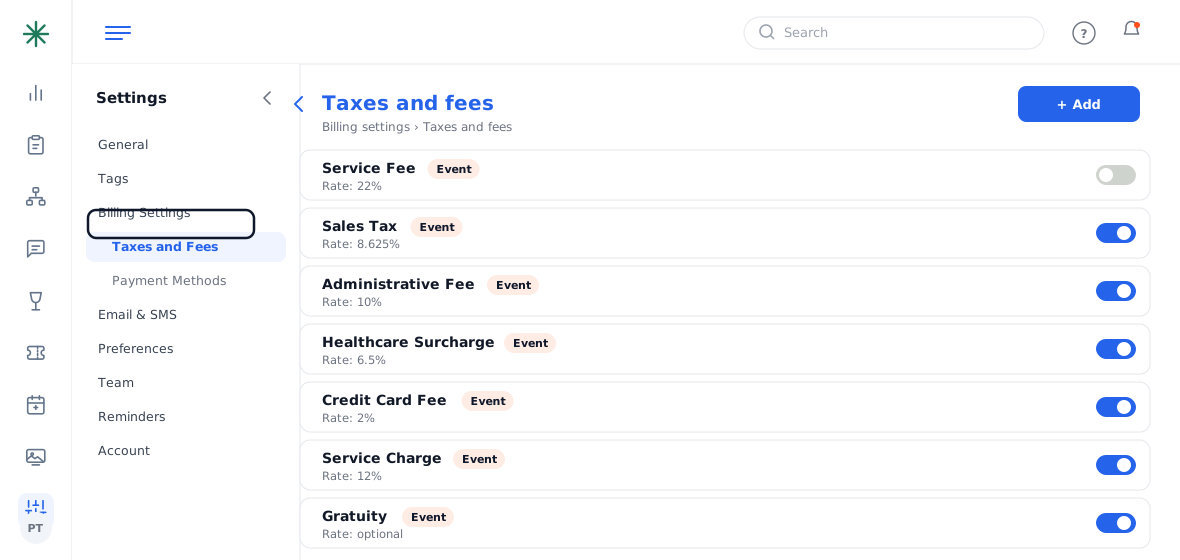
Billing Settings → Taxes and Fees - You’ll see every fee — Sales Tax, Service Charge, Administrative Fee, Healthcare Surcharge, Credit Card Fee, Gratuity and more. Toggle on the ones you charge.

The Taxes and Fees list with toggles - Click a fee (or + Add) to set its name, rate % and scope. Save.

Editing a fee’s rate
Step 2 — Apply or adjust it on a contract
- Open the event → Contract tab → Add Contract (or Edit an existing one).

Opening the contract builder - Scroll to Invoice Totals. Every enabled fee already appears as a row (e.g. Sales Tax 8.625%, Service Charge 12%). Edit the % on a row to override it for this contract only.

Fees in Invoice Totals - Need a one-off charge? Click + Add Biller to add a custom fee line. The Grand Total updates as you go.

Add Biller and Grand Total
Editing a rate in Billing Settings changes the default for future contracts; editing it inside a contract only affects that contract.
A Tax Exempt (0%) option exists for non-taxable clients — enable it and apply it when needed.
How the fees stack up
In Invoice Totals, fees are applied to the Sub Total (after any discount) in the order they’re listed in Billing Settings. Drag to reorder them there if you need a specific sequence on the document. A typical fee stack looks like this:
- Credit Card Fee — 2% (covers card processing on online payments)
- Sales Tax — 8.625%
- Administrative Fee — 10%
- Healthcare Surcharge — 6.5%
- Service Charge — 12% (a mandatory, taxable charge paid to staff)
- Gratuity — optional, guest’s discretion
Worked example
A dinner with a $2,600 sub total (room + food) totals like this:
| Sub Total | $2,600.00 |
| Credit Card Fee (2%) | $46.00 |
| Sales Tax (8.625%) | $280.79 |
| Administrative Fee (10%) | $230.00 |
| Healthcare Surcharge (6.5%) | $149.50 |
| Service Charge (12%) | $276.00 |
| Grand Total | $3,582.29 |
Common pitfalls: (1) A fee toggled off in Billing Settings won’t appear on any contract — if a charge is “missing,” check the toggle first. (2) Discounts are applied before taxes, so the fee amounts shrink with the discounted sub total. (3) Overriding a rate inside a contract does not change your global default — do that in Billing Settings.
Frequently asked questions
How do I make a client tax-exempt?
Enable the Tax Exempt (0%) entry in Billing Settings, then on that client’s contract set the Sales Tax row to 0% (or apply the exempt line). The document will show no tax.
Why did my Grand Total change after I edited an item?
Every fee is a percentage of the sub total, so changing any line item recalculates all the fee amounts and the Grand Total instantly.
Can I add a fee that isn’t a percentage?
Yes — use + Add Biller in the contract to add a one-off line; you can enter a flat amount instead of a percentage.
Can I change the order the fees appear on the invoice?
Yes. In Settings → Billing Settings → Taxes and Fees, drag the fees into the order you want; that order carries onto contracts and documents.