How to create a lead
Add a new private-event inquiry manually from the Leads list.
Leads are inquiries for private events. They usually arrive from the public Event Lead Form, but you can also add one by hand.
- Open the Private Events module and click Leads in the sidebar.
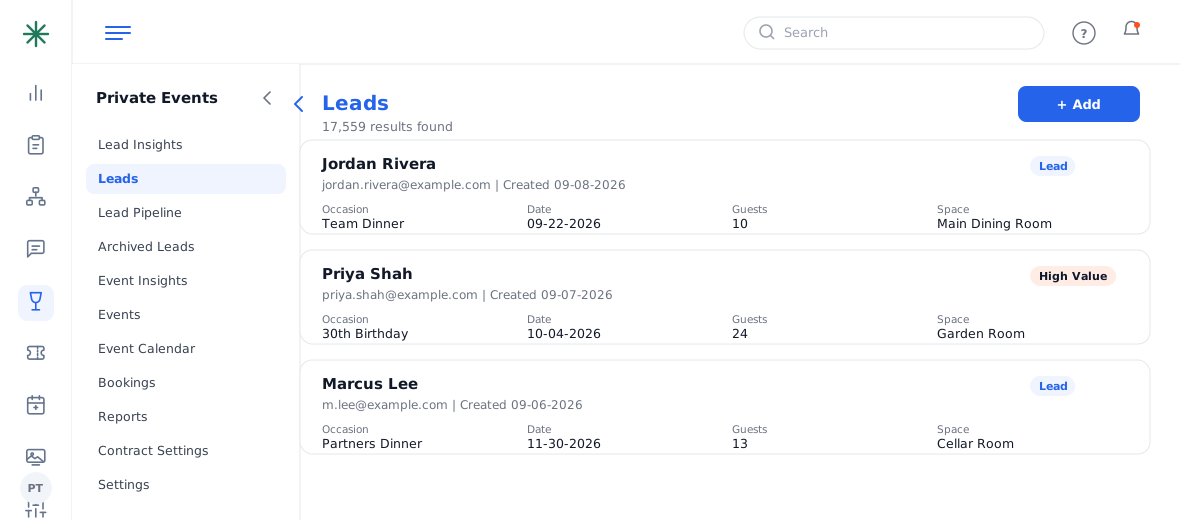
The Leads list - Click + Add (top right). Use Quick Add for a fast capture with just the essentials.
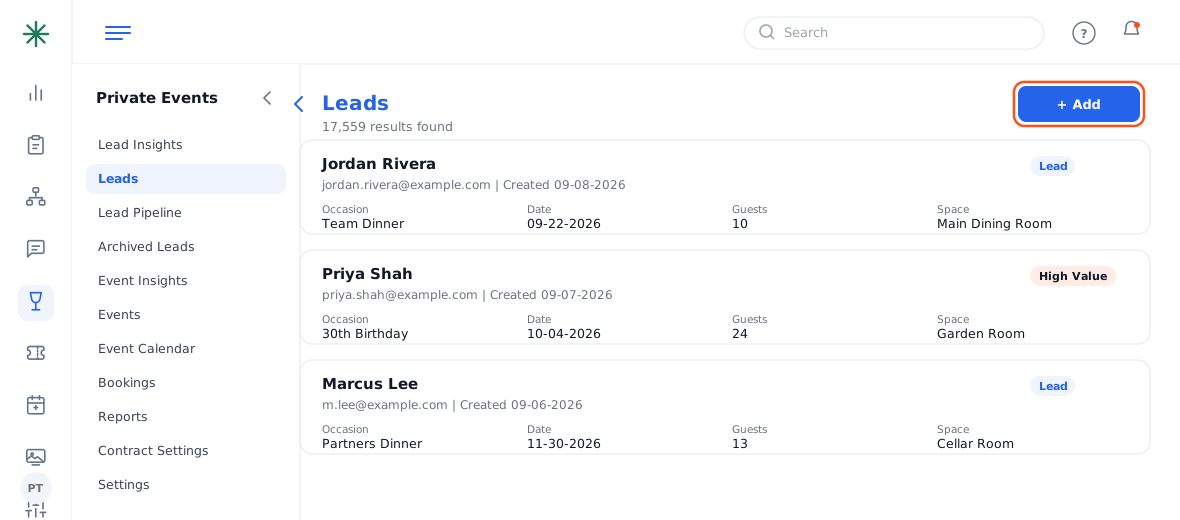
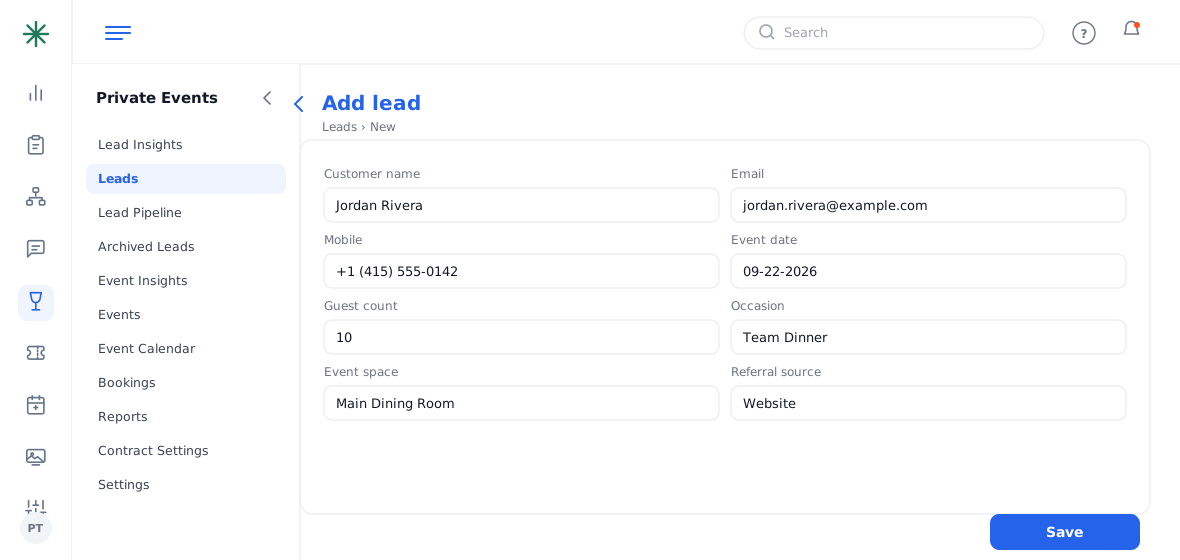
Add / Quick Add buttons - Fill in the contact and event details: name, email, mobile, event date, time, guest count, occasion and any special request.
The new-lead form - Click Save. The lead appears in the list with a Lead status and a code like WAY-WT-L-#####.
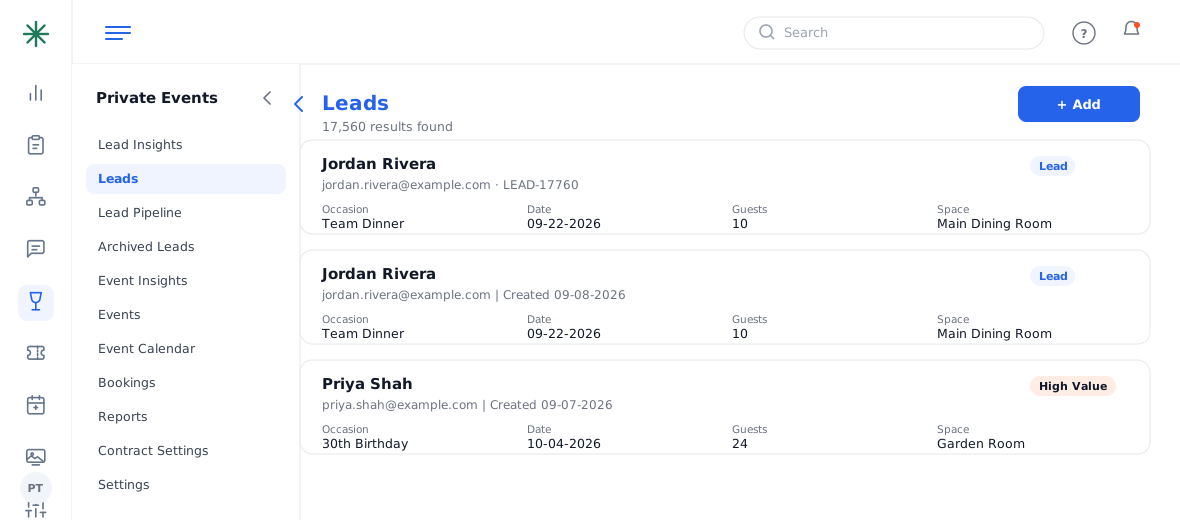
The saved lead
Leads are coded with an L (e.g. WAY-WT-L-17757); events use an E. That’s a quick way to tell them apart.
Frequently asked questions
Quick Add vs Add — which?
Quick Add captures just the essentials fast (great while on a call); Add opens the full form. You can always fill in the rest later.
Do most leads come in manually?
No — most arrive from the public Event Lead Form. Manual entry is for phone/walk-in inquiries.
What happens after I save a lead?
It lands in Leads and the Lead Pipeline at the Lead stage, ready to qualify and eventually convert.