Sharing a document with a guest
Generate a public portal link to any document with one click.
The Share action creates a public guest-portal link to a document so your customer can view it in a browser.
- On the Contract tab, open the Documents dropdown and click the Share (paper-plane) icon next to a document.
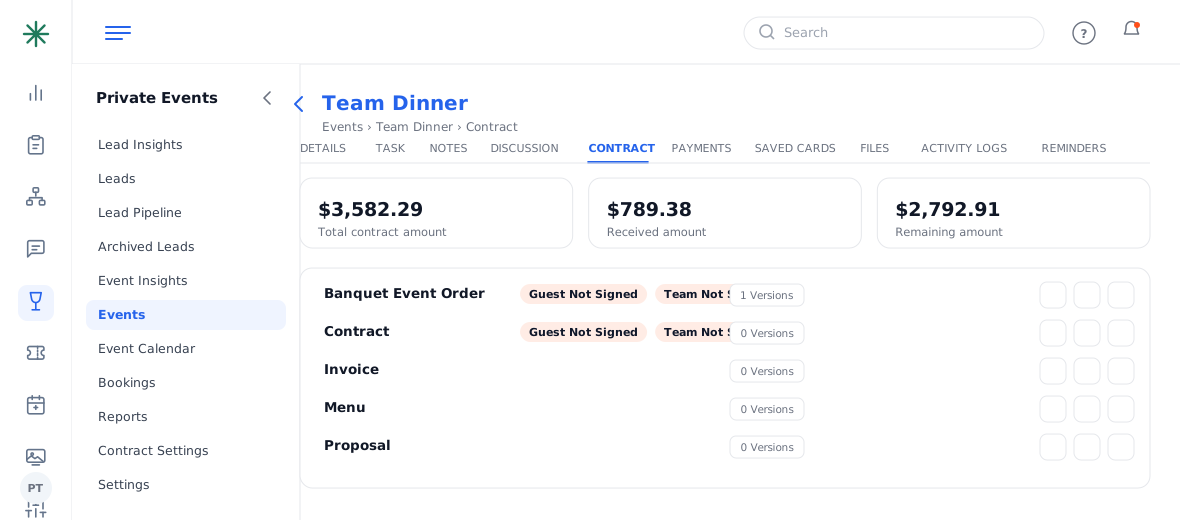
The Share icon - Panso generates a link on your guest portal (e.g. share.hellopanso.com/…) and opens the branded guest view.
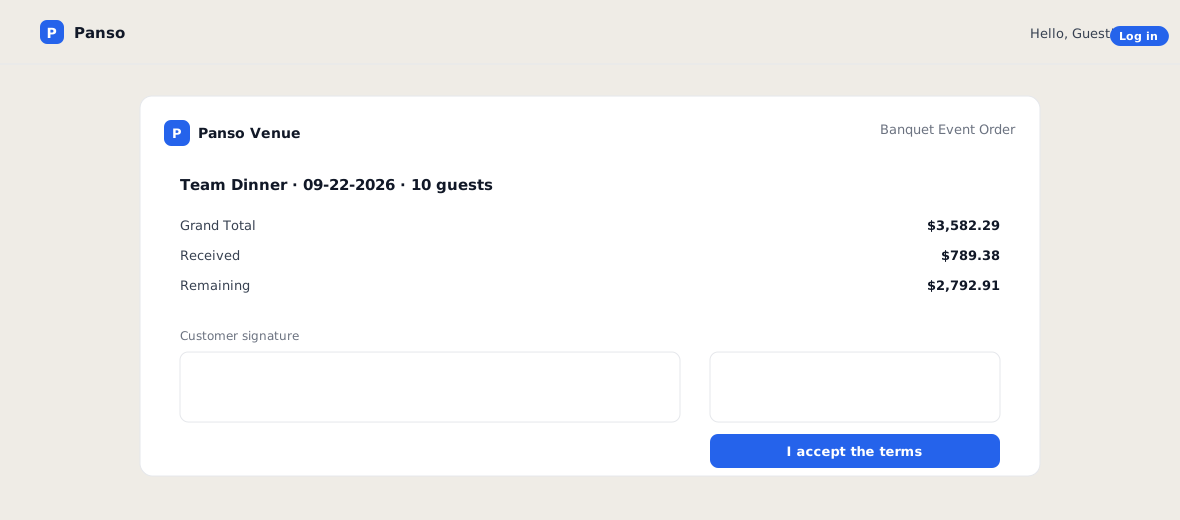
The guest-facing document
This is the same link included in the automated contract email — guests can review, sign and pay from it.
Frequently asked questions
Share vs email — what’s the difference?
Share generates the portal link on demand (good for re-sending or copying); the contract email sends that link automatically when you tick Send Email Notification.
Is the link private?
It’s a unique per-document link. Only send it to the intended guest; anyone with the link can view that document.
The guest says the link is out of date — why?
You probably edited the contract after sharing. Re-open the document and Share again so they get the current version.