Converting a lead to an event
Turn a qualified inquiry into a booked event with one click.
When a lead is ready to book, convert it to an Event. This carries the contact and details over and unlocks contracts, documents and payments.
- Open the lead from Leads or the Lead Pipeline.
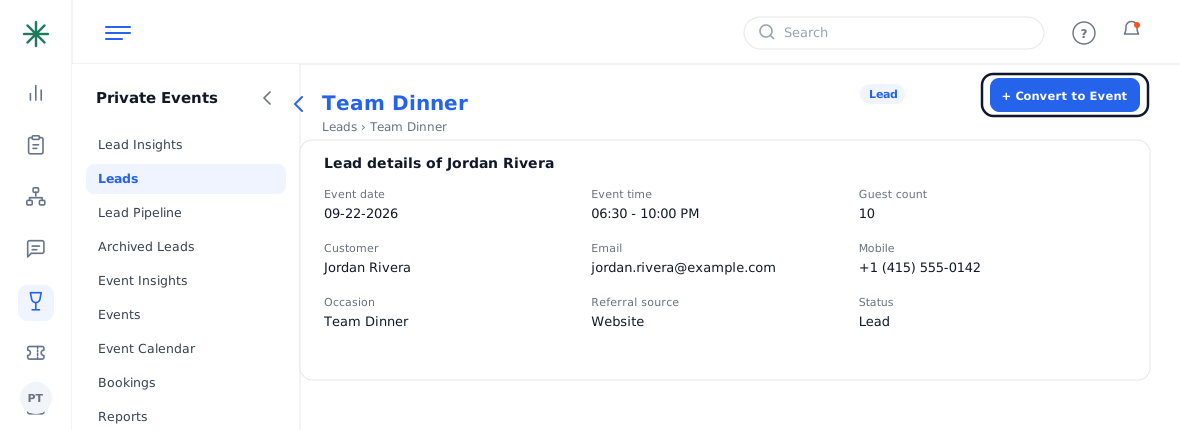
A lead detail page - Click + Convert to Event (top right).
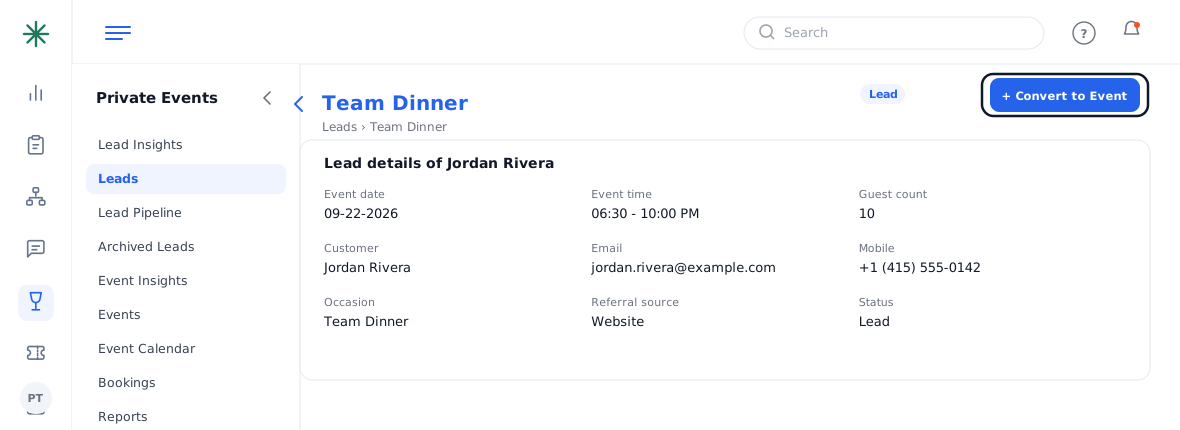
The Convert to Event button - Confirm the details. The record becomes an Event (re-coded with an E, e.g. WAY-WT-E-#####) and appears in your Events list.
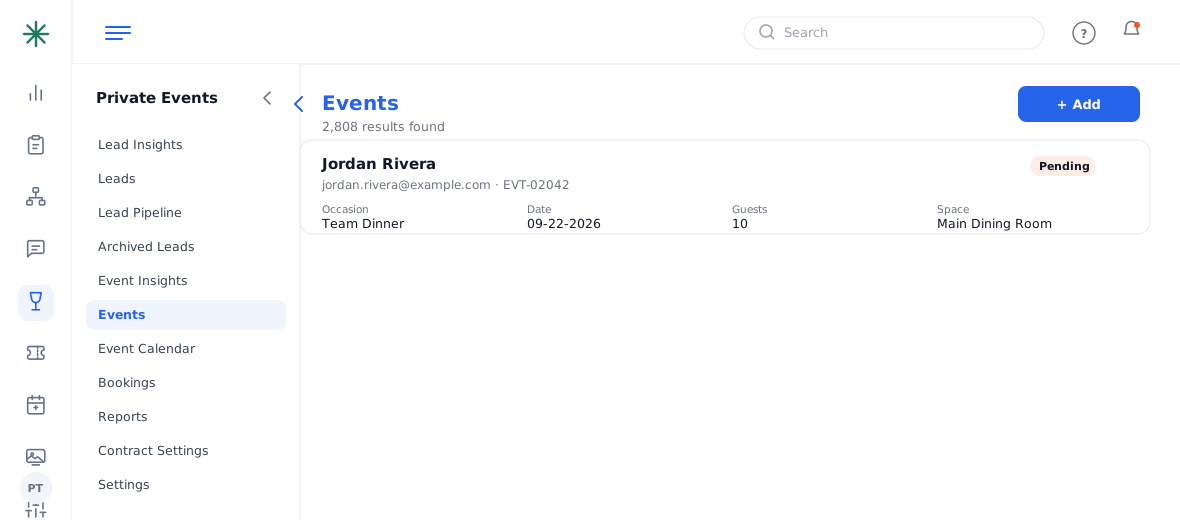
The converted event
Most inquiries never convert — that’s why you’ll always have far more leads than events. Convert only once a booking is real.
The lead detail shows Same Day Events so you can spot space conflicts before converting.
What carries over
Converting brings the contact, date, time, guest count, event space, occasion and special request across to the new event, and re-codes it from WAY-WT-L-##### to WAY-WT-E-#####. The original lead is closed out of the pipeline.
Common pitfalls: (1) Convert only when the booking is real — converting inflates your event count and reports. (2) Double-check the space against Same Day Events first. (3) After converting, the money side (contract, deposit) still needs to be built — conversion doesn’t create a contract.
Frequently asked questions
Can I undo a conversion?
There’s no one-click “un-convert.” If it was a mistake, set the event’s status to Cancelled/Lost. Ask an admin before deleting records.
Does converting notify the guest?
No — conversion is internal. The guest is only emailed when you send a contract or notification.
The lead has no space or guest count — can I still convert?
Yes, but fill those in on the event afterward so minimums and availability work correctly.
Where did my lead go after converting?
It becomes the event. You’ll find it under Events with an E-code; it’s no longer in the active lead pipeline.