Setting up a deposit / payment schedule
Create a deposit link as a percentage or fixed amount with a due date.
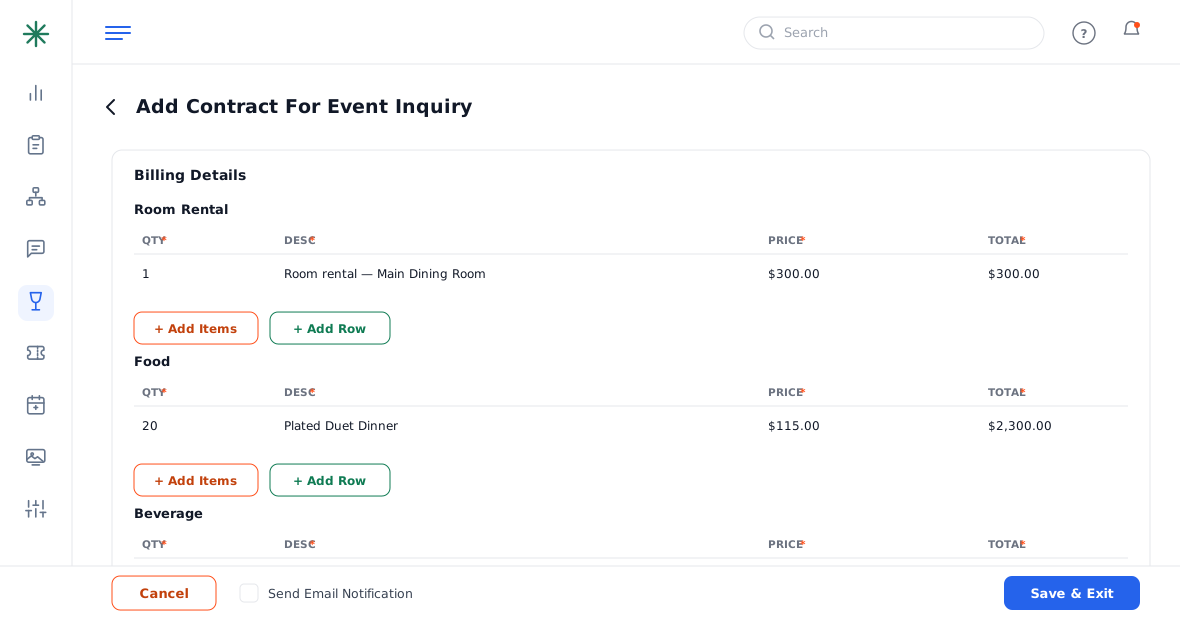
A deposit secures the booking. You set it up at the bottom of the contract builder, and it becomes a payable, trackable installment.
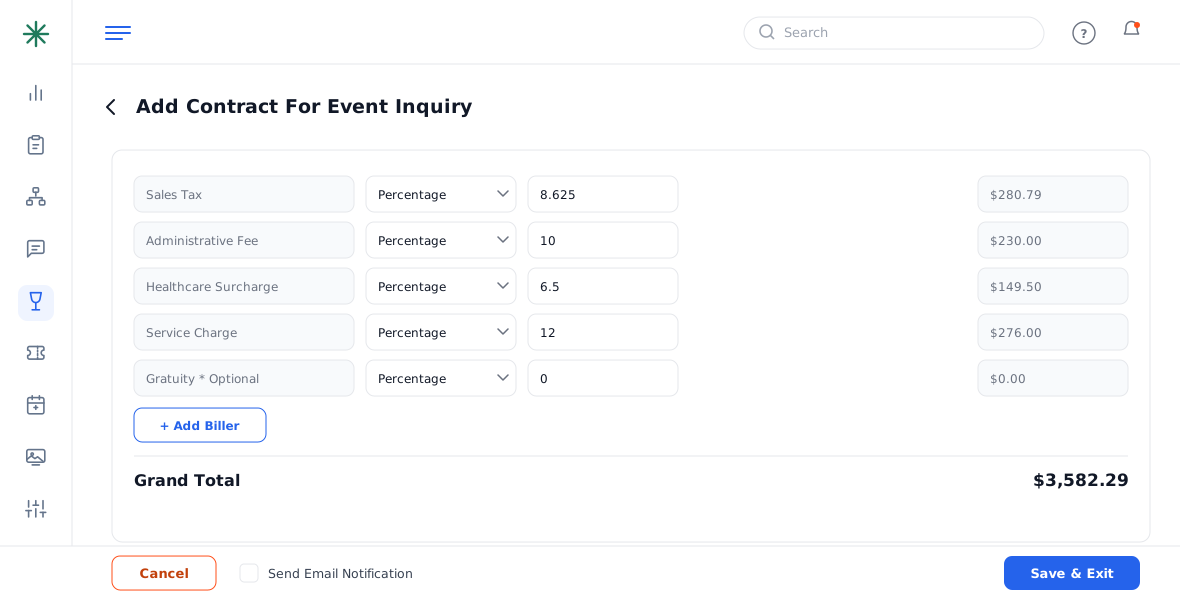
- In the contract builder, scroll past Grand Total to Create Deposit Link and tick it on.
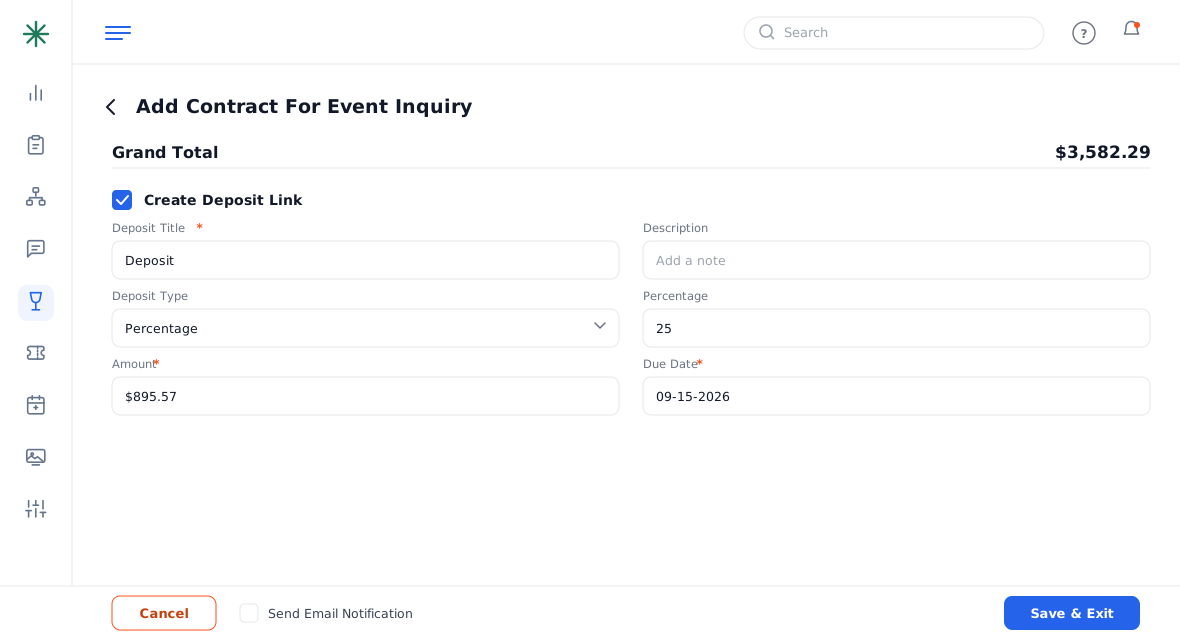
Create Deposit Link - Give the deposit a title, choose Percentage or a fixed amount, and enter the value (e.g. 25%). The Amount calculates from the Grand Total.
Deposit type and amount - Set a Due Date, then Save & Exit. The deposit now shows on the Payments tab as a Pending installment.
Deposit on the Payments tab
When the guest pays, Received rises and Remaining falls across the Contract and Payments tabs automatically.
Worked example
On a $5,281.28 contract with a 25% deposit:
| Grand Total | $5,281.28 |
| Deposit (25%) | $1,320.32 |
| Balance due later | $3,960.96 |
The $1,320.32 becomes a Pending installment on the Payments tab with its due date.
Common pitfalls: (1) The deposit is calculated from the Grand Total, so set it up after your line items and fees are final. (2) A due date in the past won’t chase itself — set a realistic date so reminders fire. (3) Turning off Create Deposit Link removes the payable installment entirely.
Frequently asked questions
Percentage or fixed amount — which should I use?
Percentage keeps the deposit proportional if the total changes; a fixed amount is best when you always take a set figure (e.g. $500 to hold a date).
Can I take more than one deposit / installment?
The deposit link creates the first scheduled payment; additional invoices/installments can be created from the Payments tab (see Creating an invoice).
What does the guest see?
They receive a portal link where they can review the contract and pay the deposit online by card.
When does Remaining update?
Immediately after a payment is recorded or a card is charged — across the Contract, Payments and Details tabs.