How to create a contract for an event
Build a contract with line items, fees and a deposit from the event’s Contract tab.
A contract turns an event into a priced, signable agreement. You build it from the event’s Contract tab.
- Open the event and click the Contract tab. You’ll see Total / Received / Remaining cards.
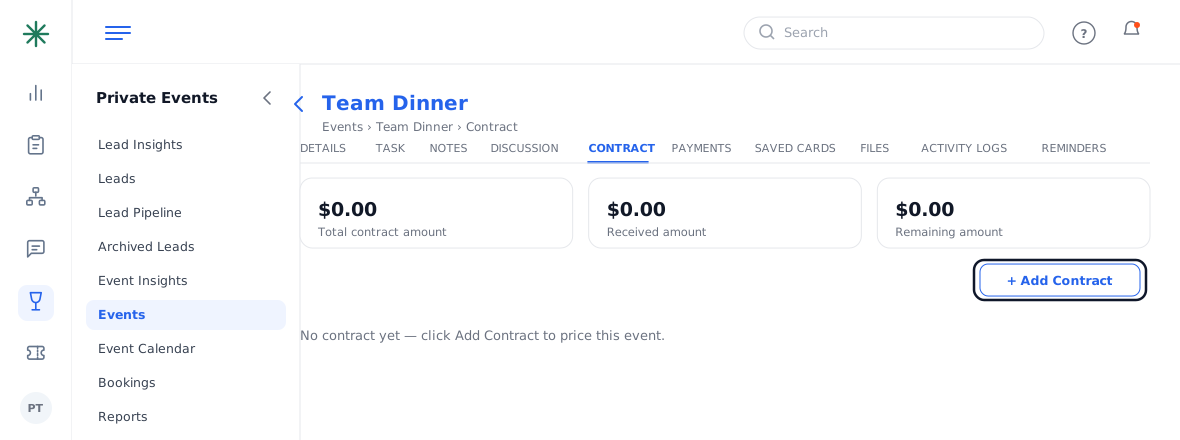
The Contract tab - Click + Add Contract. The builder opens pre-loaded with the event info and an auto-generated Invoice Number (e.g. WT-INV-####-#####).
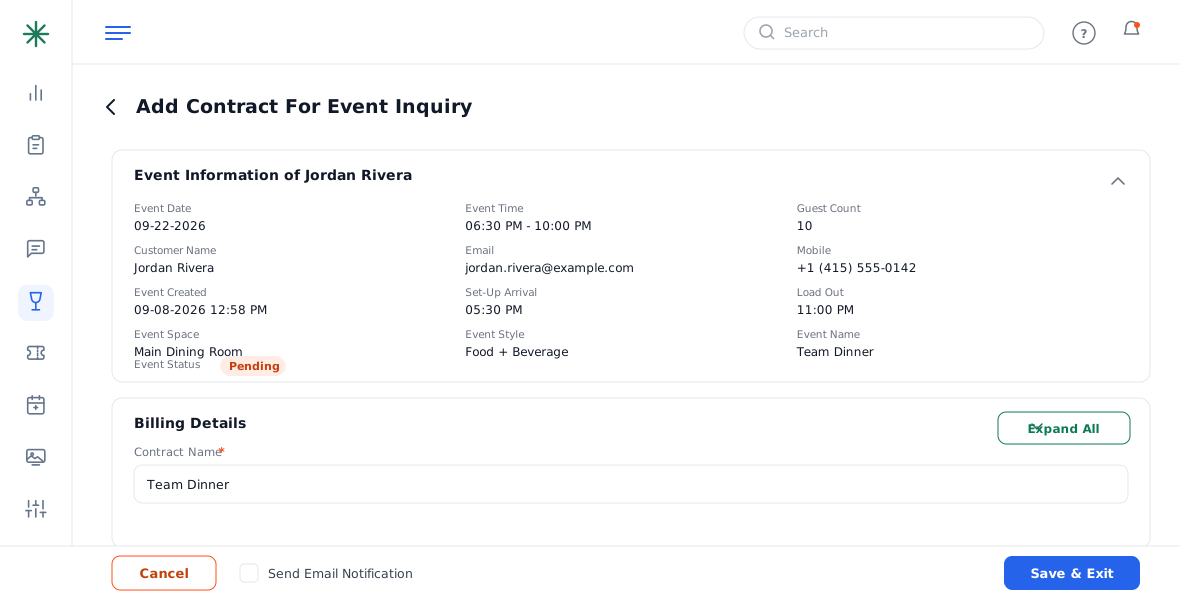
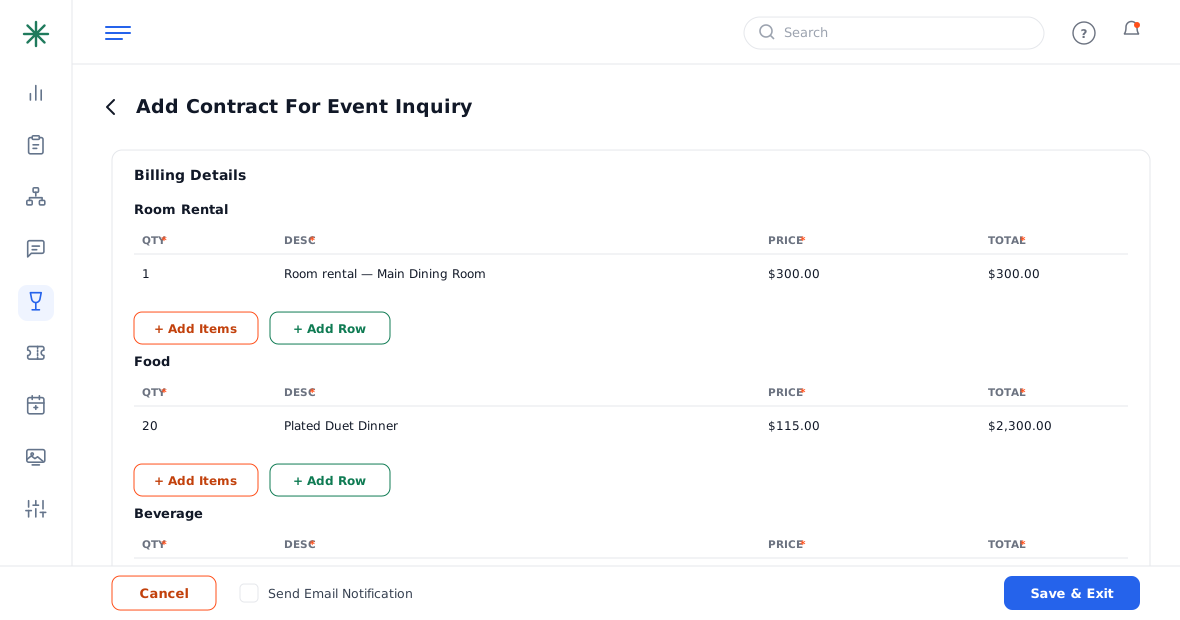
The Add Contract builder - Add line items under Room Rental, Food, Beverage and Additional Charges using Add Items (from your catalogs) or Add Row (manual). Enter quantity, description and price.
Adding line items - Review Invoice Totals — taxes and fees apply automatically (see How to add tax & fees). Add a deposit if needed, then click Save & Exit.
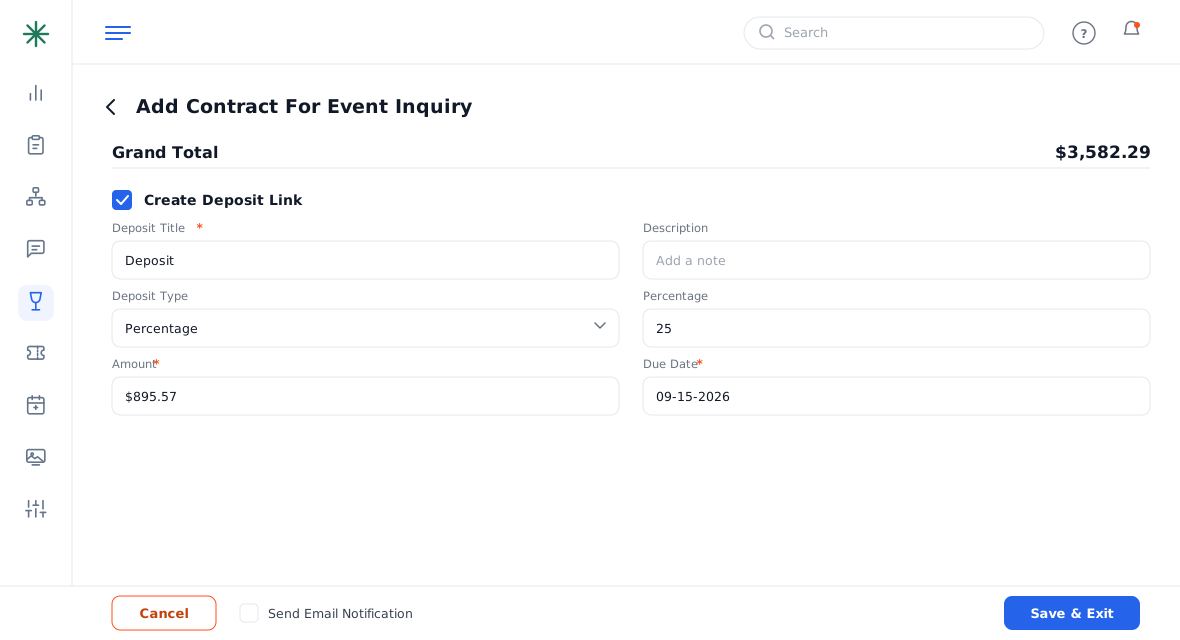
Invoice Totals and Save
Tick Send Email Notification before saving to email the guest their contract and payment link right away.
After saving, the contract row shows Edit, a Documents dropdown, and its own Total / Received / Remaining.
What each part of the builder does
- Billing Details — contract name, auto invoice number, invoice date, remark and billing address.
- Line-item sections — Room Rental, Food, Beverage, Additional Charges (see Adding line items).
- Invoice Totals — minimums tracking, discount, the tax/fee stack and Grand Total (see How to add tax & fees).
- Create Deposit Link — the deposit / payment schedule (see Setting up a deposit).
- Special Instructions — free text with a Select Template option to reuse saved content.
Common pitfalls: (1) Watch for Unmet F&B / Rental Minimum flags before saving. (2) If you don’t tick Send Email Notification, nothing is emailed — you can still Share the document later. (3) One event can hold more than one contract; use Add Contract again rather than overwriting.
Frequently asked questions
Where does the invoice number come from?
It’s generated automatically (e.g. WT-INV-2026-02737) when you open the builder — you don’t type it.
Can I edit a contract after saving?
Yes — open the event’s Contract tab and click Edit on the contract row. Amounts and documents update accordingly.
Can one event have multiple contracts?
Yes. Click Add Contract for each; each carries its own totals, documents and payments.
How do I send it to the guest?
Tick Send Email Notification on save, or use the Share action on any generated document (see Sharing a document).