Finding a customer profile
Search the unified customer database and view a contact’s full history.
The CRM is one shared customer database that every module links to. Profiles holds every contact.
- Open the CRM module and click Profiles.
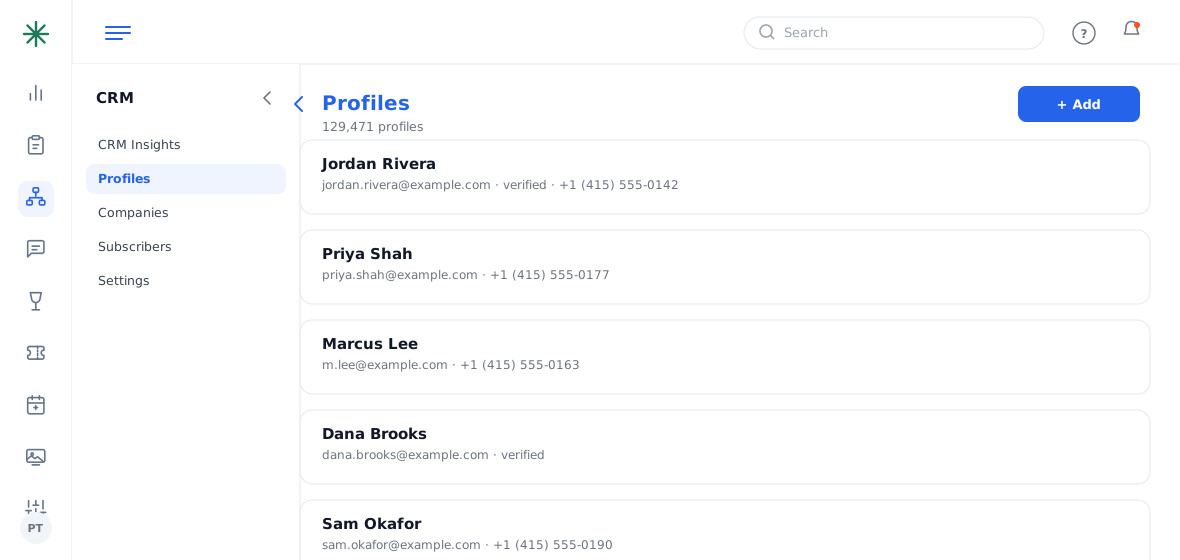
The Profiles list - Search by name or email, and filter by Active / Inactive. Each row shows email (with a verified flag) and phone.
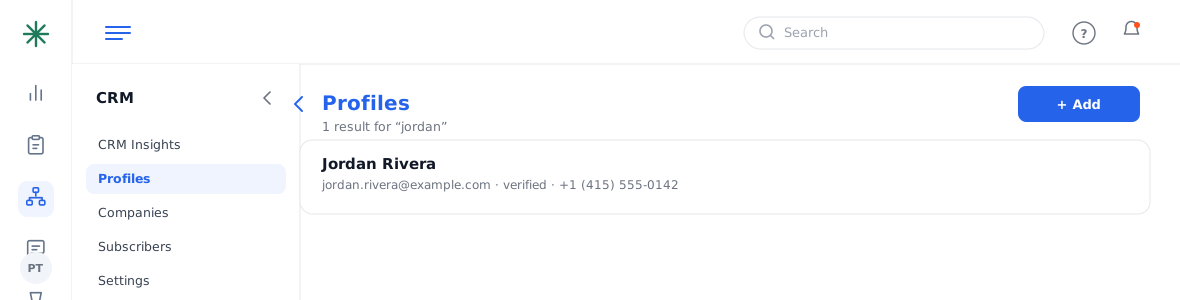
Searching profiles - Click the arrow to expand a profile and see its cross-module activity (total events, programming, registered date).
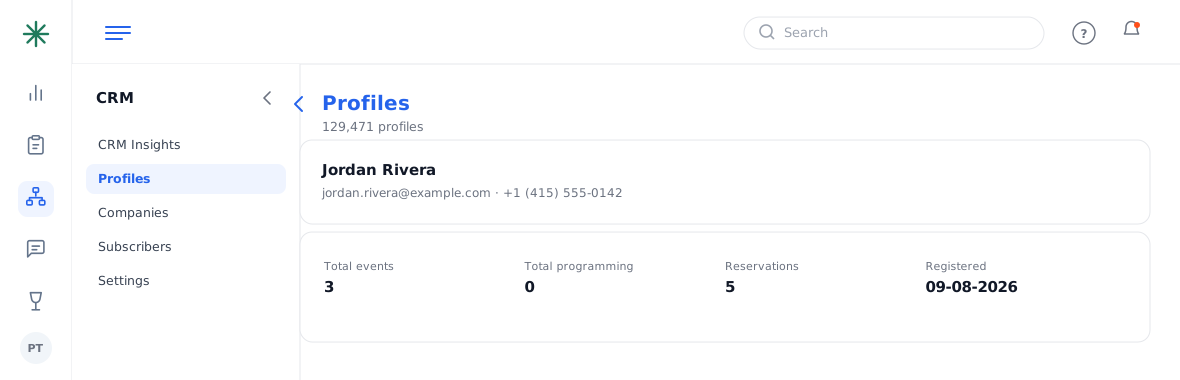
An expanded profile
The same customer appears across Leads, Events, Reservations and Marketing — because they’re all linked to this one profile.
Frequently asked questions
There are two profiles for the same person — what do I do?
Duplicates usually happen when a guest inquires with different emails. Check both records’ history, then keep the primary and mark the other inactive (ask an admin before deleting).
What does the verified email flag mean?
A green check means the address was confirmed (e.g. via a portal login); a red mark means unverified. Unverified addresses are more likely to bounce in campaigns.
Why does a profile show 0 events when I know they booked?
The booking may be linked to a different (duplicate) profile, or the event isn’t attributed to them as primary customer. Open the event’s Details tab to check the linked customer.