Finding your way around Panso
Understand the left rail modules, the dashboard launcher and the location switcher.
Panso is a suite of modules. You move between them from the icon rail on the far left, or from the Dashboard launcher.
The module rail
Each icon on the left edge opens a module: Dashboard, CRM, Private Events, Reservations, Marketing Suite, CMS, and Settings. Hover an icon to see its name.
- Click the Dashboard icon (top of the rail) to open the launcher with a tile for every module.
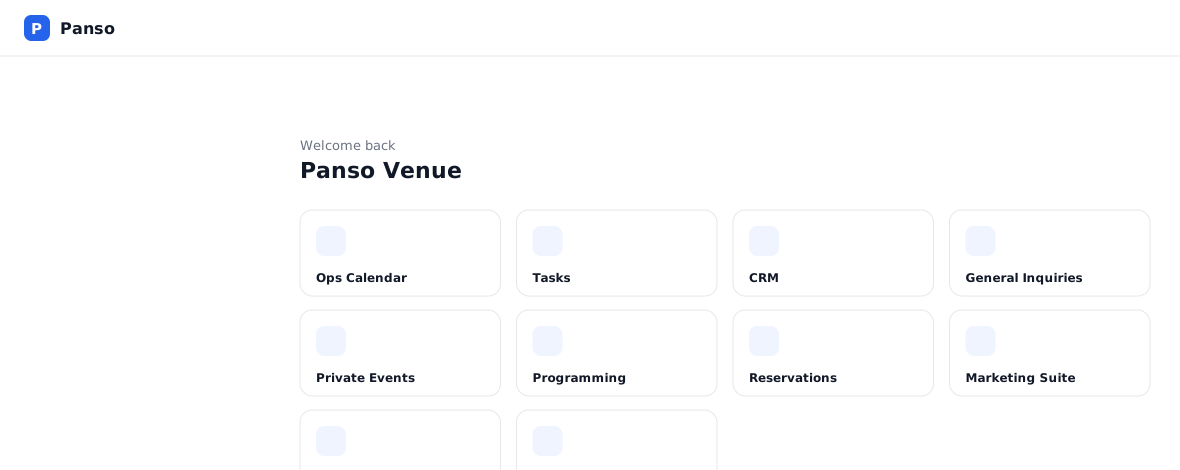
Dashboard launcher with all modules - Inside a module, use the left sidebar to move between its pages. Click the menu / collapse icon to expand or hide it.
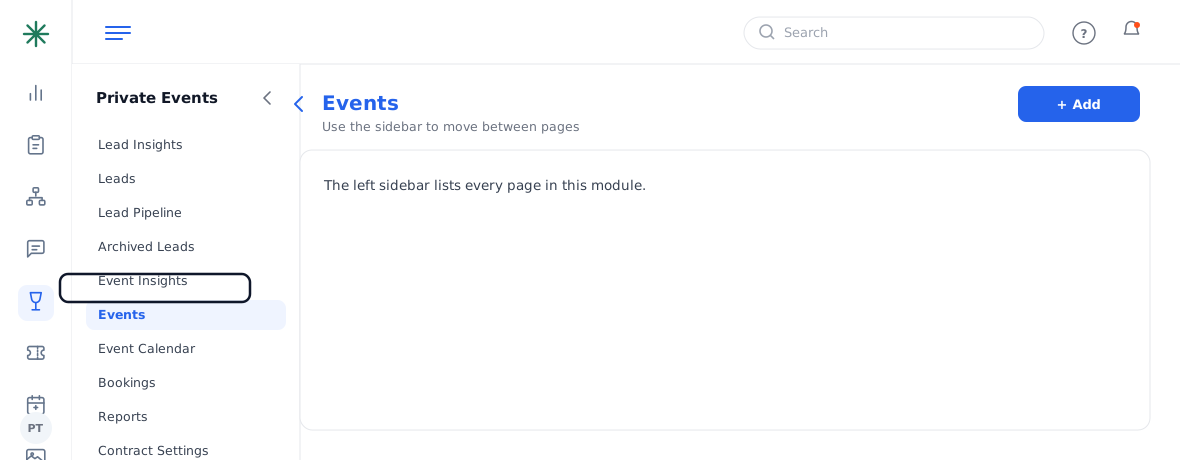
A module’s left sidebar
The location switcher
Near the top left you’ll see your venue name (for example, “Main Street Venue”). If your company runs more than one location, switch between them here.
Lost? Click the Panso logo or the Dashboard icon any time to return to the launcher.
Frequently asked questions
The icons on the left rail have no labels — how do I know what they are?
Hover over any icon to see its name. Or open the Dashboard launcher, which shows a labelled tile for every module.
How do I switch between venues/locations?
Use the location switcher near the top left (your venue name). It only appears if your company has more than one location.
Where’s the search?
Most list screens have their own search box; the help you’re reading now also has global search at the top.