Sending a contract for signature
Email the contract and collect the guest’s e-signature and card authorization.
The signable documents (Contract and BEO) collect a Guest and a Team signature. Here’s how to send one out.
- When building or editing the contract, tick Send Email Notification before Save & Exit — this emails the guest a portal link.
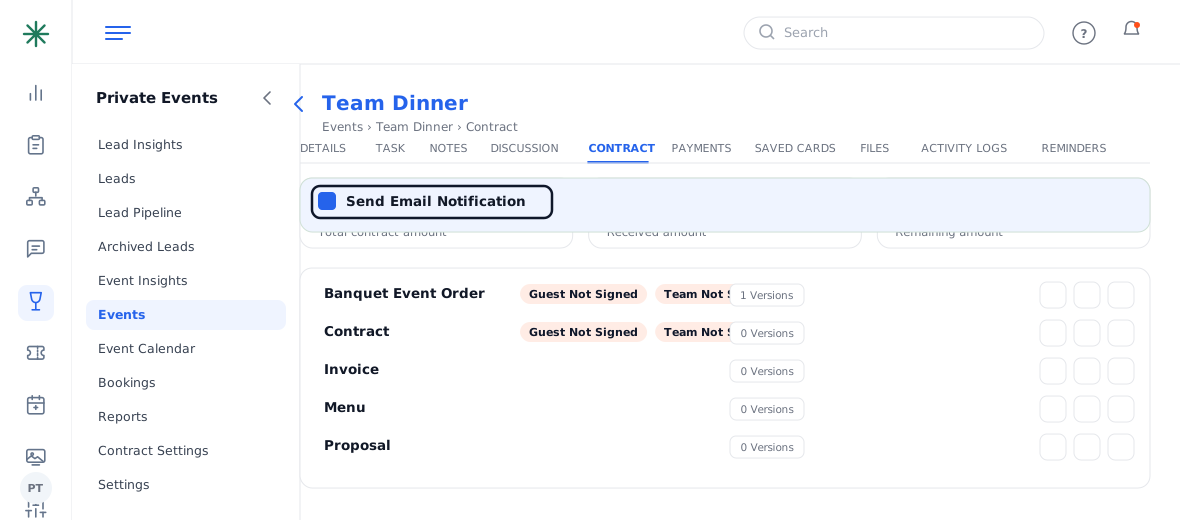
Send Email Notification - The guest opens the link, reviews the document, and completes the Customer Signature pad plus name and mobile.
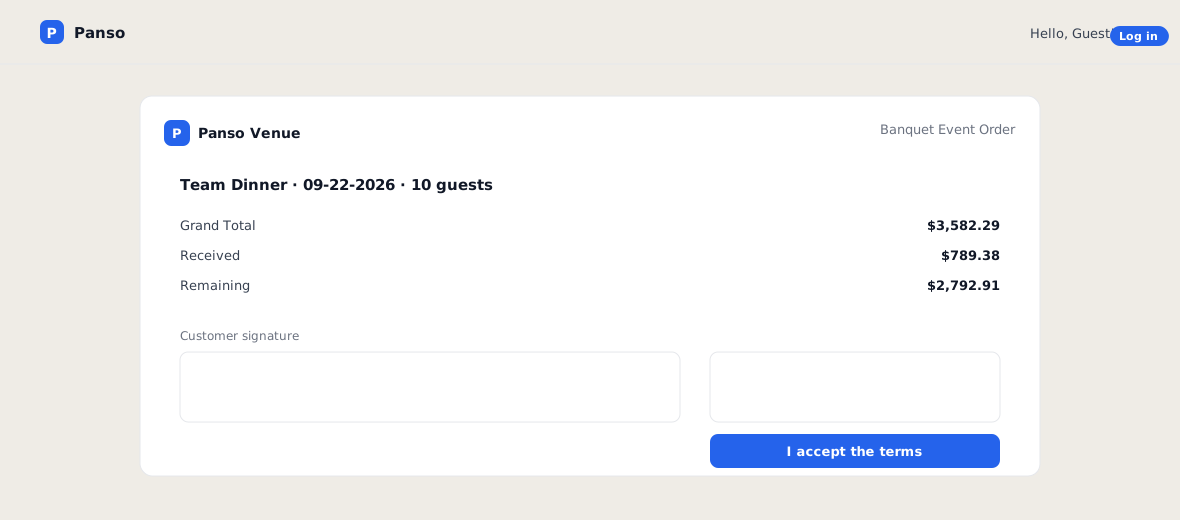
The guest signature pad - Back on the Contract tab, the document’s Guest Signed / Team Signed flags update as each party signs.
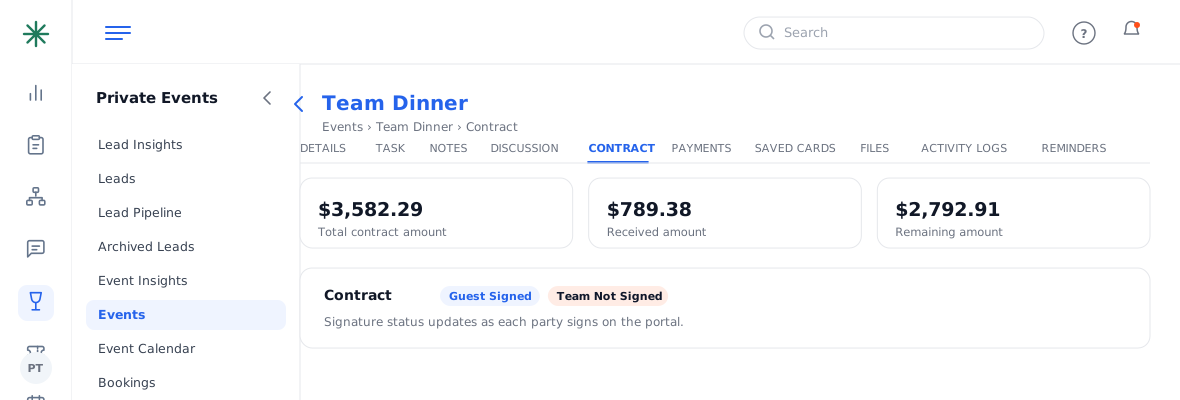
Signature status flags
Payment and signature are tracked independently — a guest can pay the deposit before the contract is countersigned.
The Contract document ends with a Credit Card Authorization block, so signing also authorizes the card on file per your terms.
Following up
The outbound email is logged on the event’s Discussion tab (with the contract PDF attached), and every signature/payment event is recorded in Activity Logs. If the guest goes quiet, you can re-share the document link or reply in the thread.
Common pitfalls: (1) If the email didn’t send, confirm you ticked Send Email Notification and the guest’s email is correct. (2) “Guest Not Signed” can persist even after a deposit is paid — that’s expected; chase the signature separately. (3) Re-generating a document creates a new version; make sure the guest signs the latest one.
Frequently asked questions
How do I resend the contract?
Open the Contract tab → Documents → Share to regenerate the portal link, or reply from the Discussion tab.
Where do I see who has signed?
On the Contract tab, each signable document shows Guest Signed / Team Signed flags and a version count.
Can the team sign too?
Yes — the BEO and Contract track both a guest and a team signature so you have a fully executed record.
Does the guest need an account?
They log in to the portal with their email and a one-time code — no password to manage.